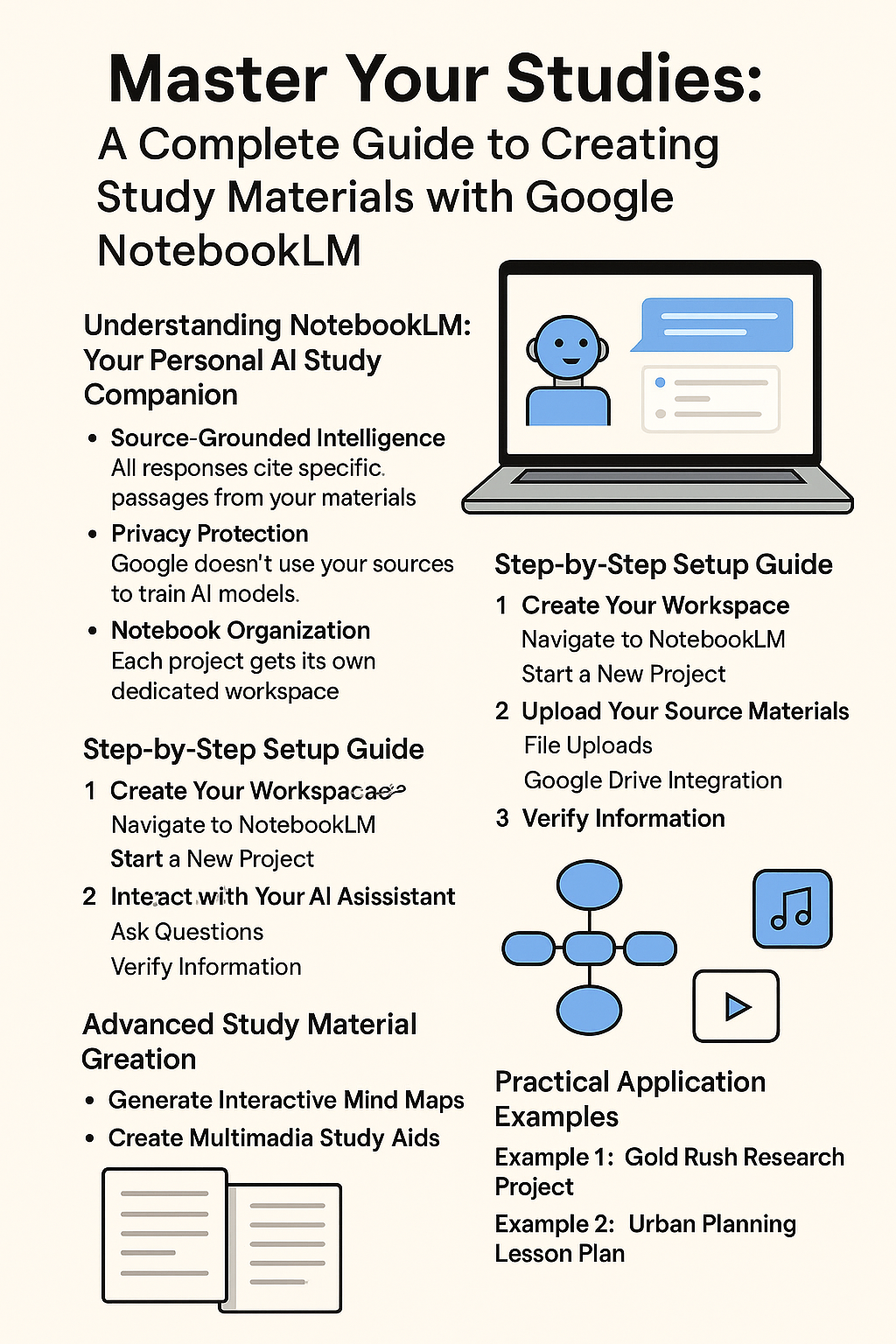
Google NotebookLM Guide: Create AI Study Materials
Struggling with study materials and tight deadlines? Google's NotebookLM transforms how you learn by creating a personalized AI research assistant that works exclusively with your content. This comprehensive guide breaks down every feature, workflow, and technique.
By Isaac Kofi Maafo · 2025-08-24 · 15 min read · Category: AI Education
Tags: Google NotebookLM, AI Study Tools, Educational AI, Student Resources, Study Methods, AI Productivity, Learning Technology, Academic Success
Master Your Studies: A Complete Guide to Creating Study Materials with Google NotebookLM
By Isaac Kofi Maafo
Part of the AI in Africa Comprehensive Guide | This article is part of our extensive resource on AI transformation across Africa. Explore how AI tools are revolutionizing education, capacity building, and professional development.
Struggling with study materials and tight deadlines? Google's NotebookLM transforms how you learn by creating a personalized AI research assistant that works exclusively with your content. This comprehensive guide breaks down every feature, workflow, and technique to help you revolutionize your study process.
Understanding NotebookLM: Your Personal AI Study Companion
What Makes NotebookLM Different
NotebookLM isn't another chatbot. It's an AI-first tool built on three core principles:
Source-Grounded Intelligence
Works only with documents you upload
All responses cite specific passages from your materials
No generic internet knowledge mixed in
Privacy Protection
Google doesn't use your sources to train AI models
Your information stays private and secure
Creates isolated workspaces for each project
Notebook Organization
Each project gets its own dedicated workspace
Perfect for research papers, study guides, or lesson plans
Keeps different subjects completely separate
Step-by-Step Setup Guide
Step 1: Create Your Workspace
Navigate to NotebookLM
1. Go to notebooklm.google.com
2. Sign in with your Google account
Start a New Project
1
AI Education
Featured
Google NotebookLM Guide: Create AI Study Materials
Struggling with study materials and tight deadlines? Google's NotebookLM transforms how you learn by creating a personalized AI research assistant that works exclusively with your content. This comprehensive guide breaks down every feature, workflow, and technique.
Isaac Kofi Maafo
August 24, 2025
15 min read
Master Your Studies: A Complete Guide to Creating Study Materials with Google NotebookLM
By Isaac Kofi Maafo
Part of the AI in Africa Comprehensive Guide | This article is part of our extensive resource on AI transformation across Africa. Explore how AI tools are revolutionizing education, capacity building, and professional development.
Struggling with study materials and tight deadlines? Google's NotebookLM transforms how you learn by creating a personalized AI research assistant that works exclusively with your content. This comprehensive guide breaks down every feature, workflow, and technique to help you revolutionize your study process.
Understanding NotebookLM: Your Personal AI Study Companion
What Makes NotebookLM Different
NotebookLM isn't another chatbot. It's an AI-first tool built on three core principles:
Source-Grounded Intelligence
Works only with documents you upload
All responses cite specific passages from your materials
No generic internet knowledge mixed in
Privacy Protection
Google doesn't use your sources to train AI models
Your information stays private and secure
Creates isolated workspaces for each project
Notebook Organization
Each project gets its own dedicated workspace
Perfect for research papers, study guides, or lesson plans
Keeps different subjects completely separate
Step-by-Step Setup Guide
Step 1: Create Your Workspace
Navigate to NotebookLM
Go to notebooklm.google.com
Sign in with your Google account
Start a New Project
Click "+ Create new notebook"
Name your notebook clearly (e.g., "Cold War History Study Guide")
This creates your isolated AI workspace
Step 2: Upload Your Source Materials
The Sources panel on the left accepts multiple formats:
File Uploads
Drag and drop PDFs, .txt files, Markdown documents
Click "Add source" then select files from your device
Google Drive Integration
Connect Google Docs and Google Slides directly
Real-time sync with your existing documents
Text Pasting
Copy quotes or passages from any source
Paste directly as a new source document
Perfect for capturing specific citations
Web Links
Add website URLs for automatic content extraction
Include YouTube video links (processes transcripts automatically)
Handwritten Notes
Take photos of handwritten notes
Save as PDF and upload
OCR technology converts handwriting to searchable text
Step 3: Interact with Your AI Assistant
Ask Questions
Type questions in the center chat panel
AI scans all sources to construct answers
Receive responses with numbered citations
Verify Information
Hover over citation numbers for source previews
Click citations to jump to exact passages
Always fact-check AI responses against original sources
Advanced Study Material Creation
Generate Interactive Mind Maps
Access the Studio Panel (right side)
Click "Mind Map"
AI analyzes all sources automatically
Creates nested topic visualization
Shows relationships between concepts
Explore Connections
Click nodes to expand sub-topics
Generate new research questions instantly
Follow topic threads naturally
Create Multimedia Study Aids
Audio Overviews
Select "Audio Overview" in Studio panel
AI generates conversational podcast format
Two distinct AI hosts discuss your materials
Perfect for reviewing while commuting
Video Overviews
Generate 10-15 minute video lectures
Includes AI-created slides and script
Professional voiceover narration
Visual learning for complex topics
Practical Application Examples
Example 1: Gold Rush Research Project
Sources Added:
Pasted quotes from "The Age of Gold" book
PDF chapter on Manifest Destiny
Public domain Yosemite discovery document
"Polk and Gold Rush.pdf" research paper
AI Capabilities:
Synthesizes information across all sources
Answers specific historical questions
Creates timeline connections
Generates discussion points with citations
Example 2: Urban Planning Lesson Plan
Multi-Source Synthesis:
Jane Jacobs book quotes
Project-based learning framework PDF
YouTube interview transcript
Handwritten class outline (uploaded as PDF)
Generated Output:
Four-session structured lesson plan
Learning objectives for each session
Student activities and discussion points
All content cited back to original sources
Best Practices for Maximum Effectiveness
Curate Quality Sources
Choose relevant, authoritative documents
Mix different content types (text, video, handwritten notes)
Update sources as your research evolves
Use as a Starting Point
Generate first drafts quickly
Break through blank page paralysis
Build comprehensive outlines efficiently
Always Verify
Check citations against original sources
Use AI output as foundation, not final answer
Apply critical thinking to all generated content
Organize Strategically
Create separate notebooks for different subjects
Use clear, descriptive naming conventions
Keep related materials in the same workspace
Technical Features and Capabilities
Supported File Formats
PDF documents
Text files (.txt)
Markdown files (.md)
Google Docs (direct integration)
Google Slides (direct integration)
Image files with text (OCR processing)
Citation System
Numbered footnotes in all responses
Hover previews show exact source passages
Click-through navigation to original documents
Complete transparency in information sourcing
Privacy and Security
End-to-end encryption of uploaded documents
No cross-contamination between user notebooks
Google doesn't train models on your private data
Complete control over your information
Getting Started Today
Immediate Actions
Visit notebooklm.google.com
Create your first notebook
Upload 3-5 relevant sources for a current project
Ask your first question and explore citations
Student Offer
College students can access Google AI Pro (including NotebookLM) free for one year:
Visit grow.google/students
Includes advanced AI features
2TB of storage included
Offer valid until October 6, 2025
Building Study Habits
Start each study session by uploading new materials
Use mind maps to identify knowledge gaps
Generate audio overviews for review sessions
Create study guides by asking targeted questions
Alternative Approaches You Might Consider
Manual Organization Methods
Traditional folder systems with digital files
Physical binders with printed materials
Spreadsheet-based source tracking
Other AI Study Tools
General chatbots for broader questions
Subject-specific AI tutors
Flashcard generation tools
Hybrid Approaches
Use NotebookLM for source synthesis
Combine with traditional note-taking apps
Integrate with existing study workflows
Your Immediate Action Plan
This Week
Set up your first NotebookLM notebook
Upload sources for your current biggest project
Generate one mind map and one study guide
This Month
Create notebooks for all active courses
Experiment with audio/video overviews
Develop citation verification habits
Long-term
Build comprehensive source libraries
Train others in your study group
Integrate into daily research workflows
Conclusion: Transform Your Learning Journey
NotebookLM transforms scattered study materials into a unified, intelligent research assistant. By following these workflows and leveraging its source-grounded approach, you'll accelerate learning while maintaining academic integrity through complete citation transparency.
The key insight: NotebookLM works best when you feed it quality sources and use its outputs as starting points for deeper learning, not final answers.
Ready to revolutionize your study process? Start your first notebook today at notebooklm.google.com and experience personalized AI learning.
For educational institutions and organizations looking to integrate AI into their learning programs, explore our AI education solutions or contact us to discuss custom training programs.
Isaac Kofi Maafo is Managing Partner/CEO of DigiTransact AI and a thought leader in AI education and digital transformation. He holds certifications from Stanford University in AI strategy and governance, and has been nominated for the Ghana AI Awards 2025 in the "Leaders in AI" category at the Kofi Annan ICT Centre, March 2025. This guide represents his commitment to democratizing AI education and empowering students with cutting-edge learning tools.
Tags:
Google NotebookLM
AI Study Tools
Educational AI
Student Resources
Study Methods
AI Productivity
Learning Technology
Academic Success
Share this article
Found this useful? Spread the word with your network.
IKM
About Isaac Kofi Maafo
Isaac Kofi Maafo is Managing Partner/CEO of DigiTransact AI and a distinguished thought leader in African AI innovation. He holds certifications from Stanford University in AI strategy and governance, and has been nominated for the Ghana AI Awards 2025 in the "Leaders in AI" category at the Kofi Annan ICT Centre. Won an award for being the runner-up at the 2025 TICON Africa Awards which celebrates the continent's top ICT Innovators in the category: AI & Emerging Tech Innovation Award. Isaac specializes in AI ethics, digital transformation, and creating 100+ custom GPTs for various African sectors.
Stay Updated
Get the latest insights on AI innovation and digital transformation in Africa.
.png)